
ANDROID · IN TESTING
Diablo II on your phone
Lord of Destruction in full screen, with controls made for thumbs. Watch the video and follow the guide: it is written for someone who has never played on a phone.
The app is in beta: you can already download it from the download page. Some details may change.
STEP 1 · INSTALL
Install and open the app
The app brings everything it needs: you do not need the game on your phone. The app's buttons are in Spanish; this guide gives each one with its meaning.
- Install OmbuServer.apk from the download page. If Android asks for permission to install apps from that source, allow it.
- The first time, it prepares the game. You will see «Preparando el juego» (preparing the game) with a bar. It takes a while, only this once.
- Tap INSTALAR EL JUEGO (install the game, 1.0 GB). The app downloads Diablo II and shows how much is done, the speed and the time left. If it stops, tap again: it resumes where it left off.
- Wi-Fi is better. It is close to 1 GB.
- No music or voices. On the phone the game is installed that way and takes less space. Game sounds are there.
STEP 2 · PLAY
Tap JUGAR
Once the game is installed, the start screen shows the JUGAR (play) button.
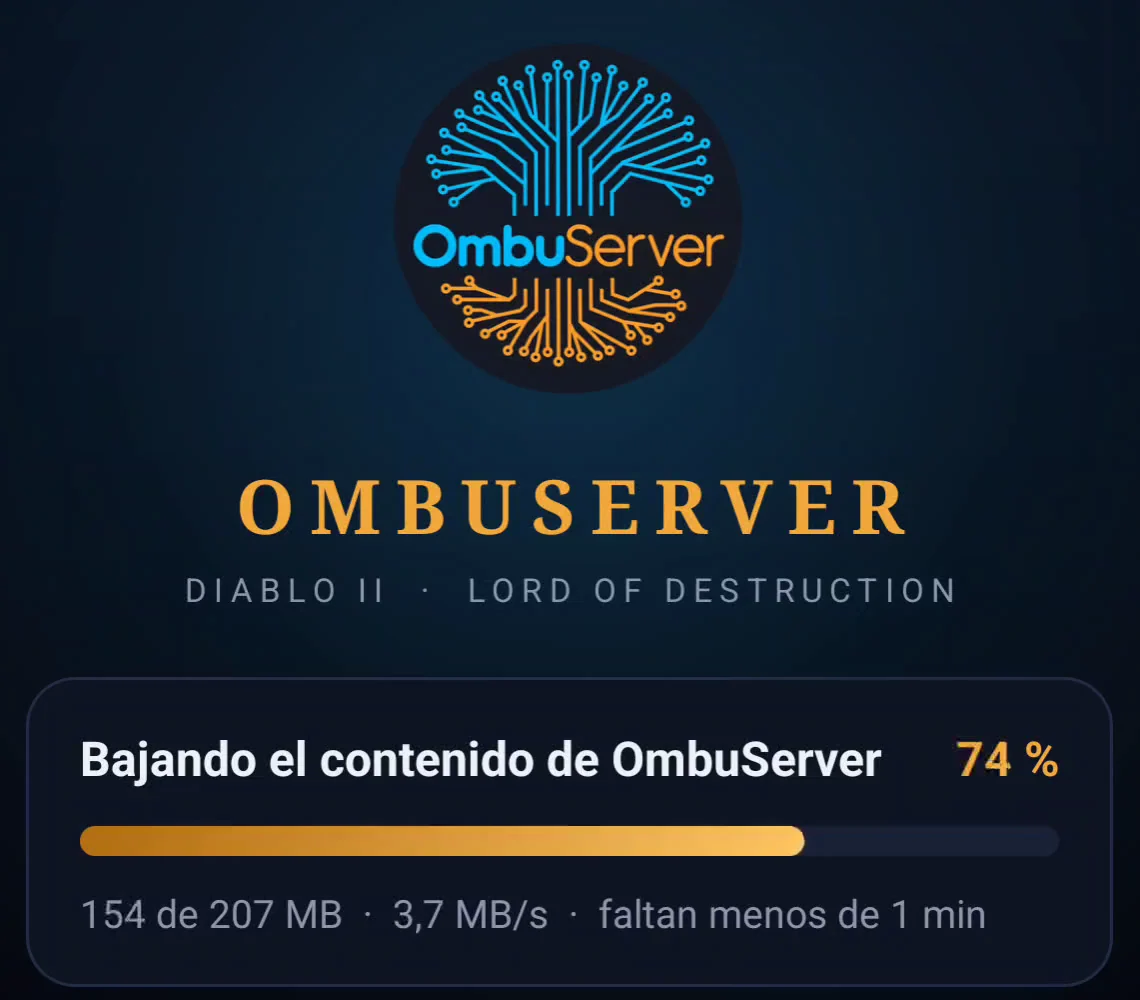
- The first time it downloads the OmbuServer content, about 220 MB. After that it only downloads what changed, and it usually goes straight in.
- Rendimiento (performance): BAJO, MEDIO or ALTO. It is below JUGAR and starts on BAJO (low), the most stable. MEDIO and ALTO (medium and high) push the phone harder: the game runs smoother, but on some phones it may close. It applies when you tap JUGAR.
- If there is a new version of the app, a notice shows up above JUGAR: tap ACTUALIZAR (update). The first time, Android asks for permission so the app can update itself. Some updates are required to keep playing.
- Sign in with your account. The game opens on the login screen: tap the field, then ABC to bring up the keyboard. Your user and password are the same as on PC, and your characters are there.
- Hold the phone sideways. The game is played in landscape.
STEP 3 · THE SCREEN
What is where
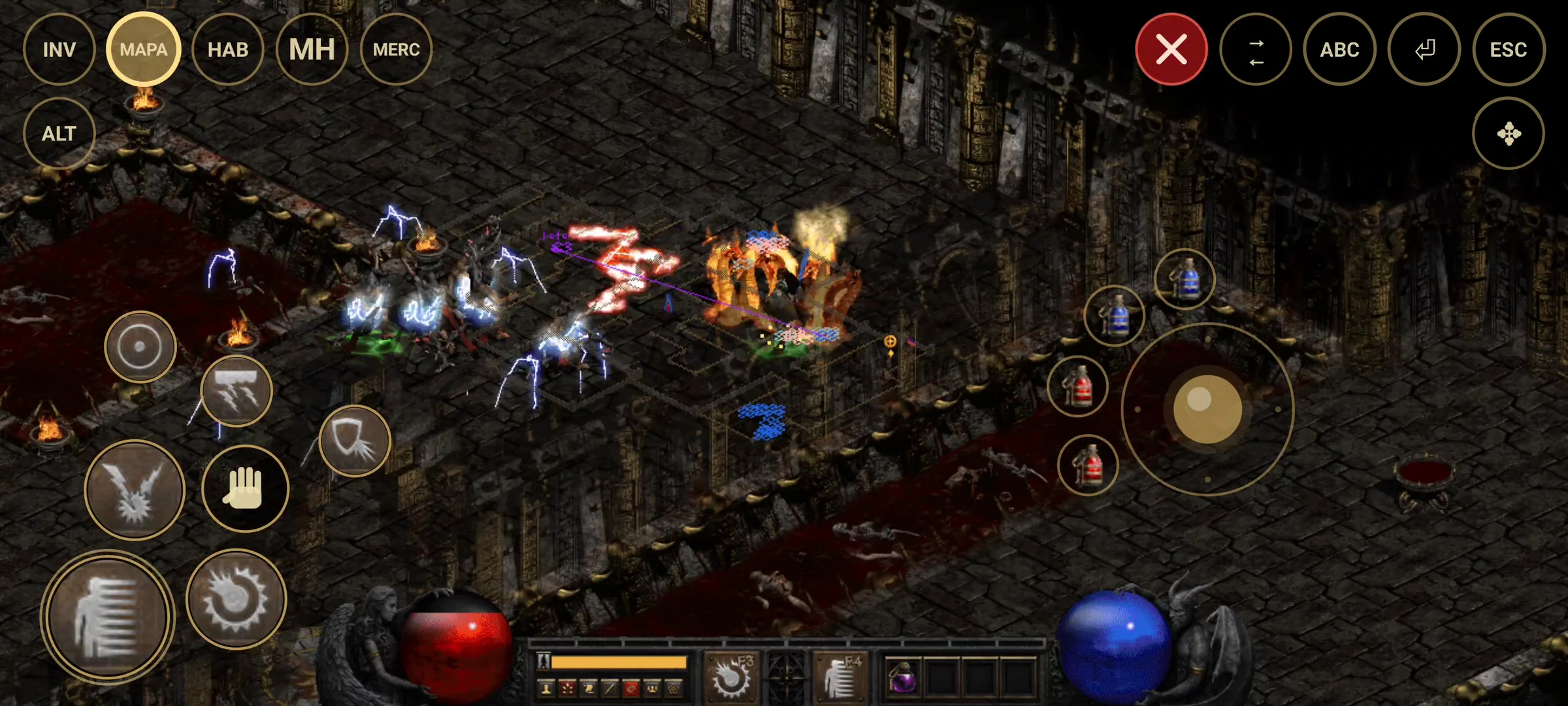
3 · TOP LEFT
Your character
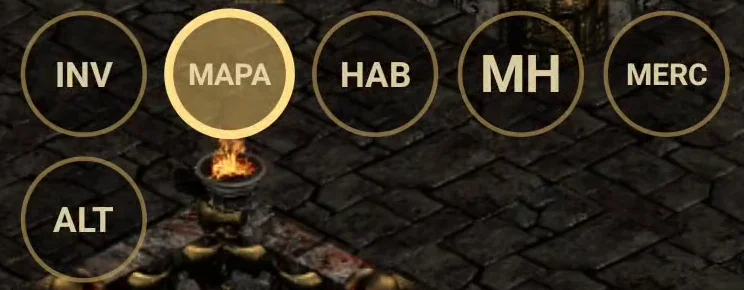
One tap opens, another closes. Whatever is open stays lit in gold.
- INV opens the inventory and equipment.
- MAPA (map) shows or hides the map over the game. It opens by itself when you join a game.
- HAB (skills) opens the skill tree, to spend points.
- MH opens the map hack menu, explained below.
- MERC opens your mercenary's inventory.
- ALT shows the names of items on the ground and a list to tap them (step 6). It stays on until you tap it again.
- Next to ALT are the three buff bubbles (step 5).
3 · TOP RIGHT
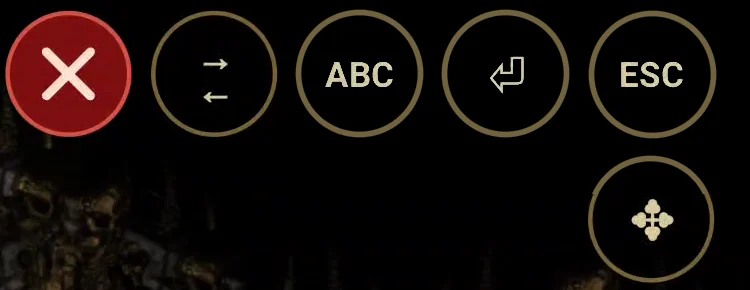
Leave, weapons, keyboard and Esc
- The red X takes you out of the game at once and saves. It does not ask: only tap it when you want to leave. It only shows inside a game.
- ⇄ swaps weapons, like W on PC.
- ABC opens the phone keyboard, for chat, user name and password.
- ⏎ is the Enter key: it opens chat and sends the message.
- ESC closes whatever is open. With nothing open, it opens the game menu.
- ✥, below ESC, with a double tap lets you move the controls (step 9).
Outside a game (login, lobby, character select) only ABC, ⏎, ESC and ✥ remain.
3 · MH
The map hack menu
You tick it with your finger. While it is open, the skills, the hand and ALT hide so they do not cover it. Tap MH again to close it.
- Map hack
- Shows the whole map, the monsters, the next exit in the story and the boss.
- Pick up misc
- Out of town, picks up what you tick as you walk by: gold, potions, scrolls, arrows, bolts and keys. The list opens on the side.
- Hide misc
- The same list, but whatever you tick is not shown on the ground.
- Ocultar blancos, azules, amarillos, gemas y set
- Hide white, blue and yellow items, gems and set items, so the ground does not fill up. Runes, uniques and crafted items always show.
The «Exit game» row is for choosing a key on PC. On the phone, use the red X to leave.
STEP 4 · GESTURES
How to touch
There is no mouse or pointer on screen: everything is done with these touches.
- One tap
- Presses a button, casts a skill or clicks in a menu. On an item in a panel, it shows its tooltip.
- Two quick taps
- On an item in a panel, picks it up. On ✥, lets you move the controls.
- Keep your finger down
- On the map, keeps casting or attacking until you lift it. On the stick, your character keeps walking.
- Hold for half a second
- With a panel open it is the right click: drink a potion, read a scroll, open the cube. The phone vibrates.
- Hold for 3 seconds
- On a skill bubble: a ring fills up and the list opens so you can change it.
- Two fingers
- Hold a bubble and tap the map with another finger: that skill is cast right where you tapped.
STEP 5 · MOVE
The stick and the potions
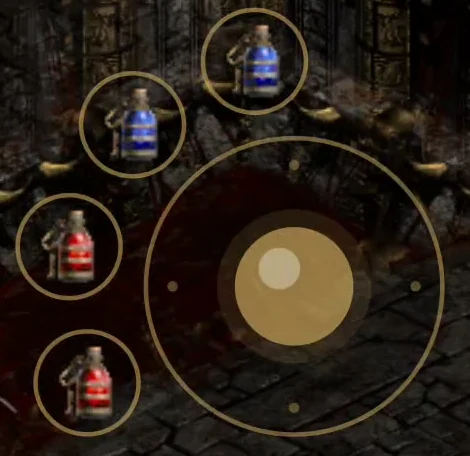
On the right, for your right thumb. The stick moves your character.
- Push it where you want to go. Let go and it stops. On the phone your character always runs; with no stamina left, it walks.
- The four potions sit around the stick and are the four belt columns. One tap drinks it.
- In town you can also tap the ground: your character walks there.
- With the inventory or the tree open you keep walking. If the stash, a shop, a townsperson or the waypoint is open, the stick closes it and walks.
STEP 5 · FIGHT
Skills and the hand
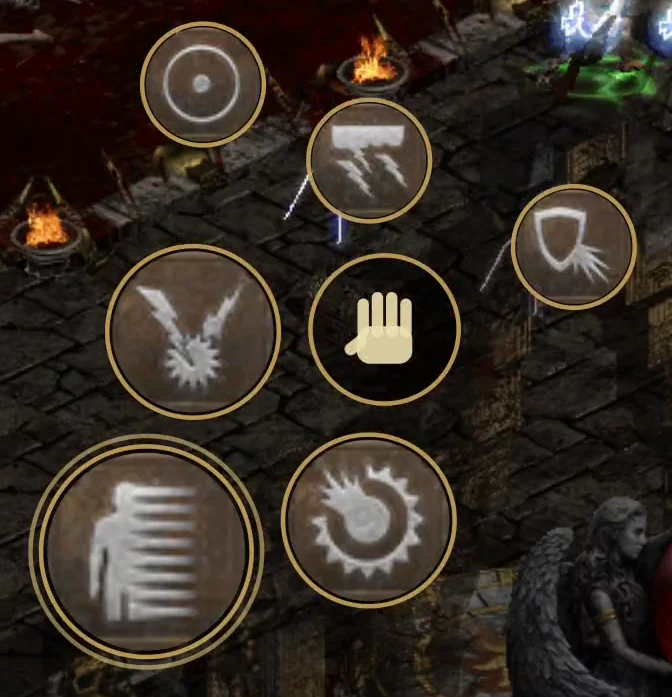
On the left, for your left thumb: one large bubble, two small ones and the hand. Up top, next to ALT, three more for buffs. Each bubble shows its skill icon.
- Setting a skill: tap an empty bubble (it shows a +). The list for your character opens with two tabs, BOTÓN IZQUIERDO and BOTÓN DERECHO (left and right button), like the mouse buttons on PC. Tap the one you want; tapping outside cancels. To change it later, hold the bubble for 3 seconds.
- The large one follows your finger. Out of town, tap the ground and the skill is cast on that spot. With Teleport, you appear where you tapped.
- Tapping an enemy attacks it with the upper small bubble (if it is empty, with the large one). No need to aim precisely: tapping close is enough.
- Pressing a bubble casts it. It aims on its own at the nearest enemy. If there is none, it goes where your character is facing; with the stick pushed, where you are heading. If you press it and move your finger without lifting it, it casts again and again.
- Buffs are cast with one tap. They are for what you use every now and then: armours, shouts, auras. They accept any skill.
- The hand picks up or uses whatever is closest: an item on the ground or, if there is none, a portal, the waypoint, a chest, a shrine, a door, an entrance or a townsperson.
- In town and in menus a tap is a normal click: talk, buy, use the stash.
STEP 6 · ITEMS
Inventory, stash, cube, shop and belt
On a phone you cannot hover the mouse over an item. So:
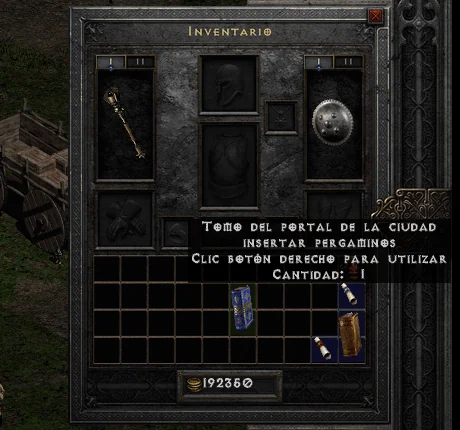
- One tap on an item shows its tooltip: its bonuses or, in a shop, its price. It does not pick it up.
- Two quick taps pick it up. In a shop, you buy it.
- With an item in hand, one tap drops it where you tapped: another slot, the stash, the cube or the ground. In a shop, you sell it.
- Holding for half a second is the right click: drink a potion, read a scroll, open the cube.
- It works the same on your equipment, when trading with another player and on the belt.
6 · DROPS
Items on the ground, shown large
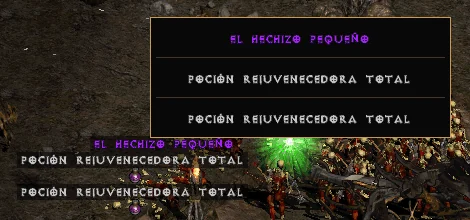
- When something drops, it shows up large for a few seconds at the top centre, in the colour of its quality. Up to four at a time.
- Tap the label and your character goes and picks it up.
- The hand picks up the closest item.
6 · ALT
Everything on the ground
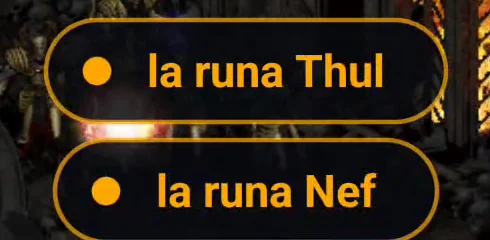
- With ALT you see the names of the items on the ground and, on top of that, a list in the middle of the screen, with large rows and each item's colour.
- Tap one and your character walks to it and picks it up.
- With many items, the list has pages: Anterior and Siguiente (previous and next) are at the bottom.
- It stays on until you tap ALT again. What you hide with the map hack does not appear.
STEP 7 · DYING
Getting your corpse back
If your character dies, it comes back to life in town and what it was wearing stays on the corpse. In Hardcore, death is forever.
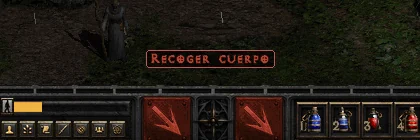
- Go back to where you died. When your corpse is on screen or nearby, a red label shows up at the bottom centre, above the belt: Pick up corpse (Recoger cuerpo with the game in Spanish).
- Tap it and your character goes to the corpse and picks it up. You get your gear back.
- Once you pick it up, the label disappears. If nothing happens, get a little closer and tap it again.
STEP 8 · LEAVING
Leave the game and close the app
- The red X, at the top right: you leave the game at once and everything is saved. You go back to the lobby.
- Or with ESC: the game menu opens and you choose Save and Exit.
- To close the app, tap Back on the phone: it asks «¿Cerrar el juego?» (close the game?). Leave the game first, so you do not lose anything.
- If you switch to another app (a message, a call), the game stays open with a notification: «El juego sigue abierto. Tocá para volver» (the game is still open, tap to go back). Your character stays in the game meanwhile, so do not take long.
STEP 9 · YOUR WAY
Move the controls
- Double tap ✥, below ESC: the screen dims and each control shows a cross.
- Drag each button to where it is comfortable. The potions move with the stick.
- LISTO (done) goes back to the game. VOLVER AL ORIGINAL (reset) puts everything back.
- It is saved on the phone, like the skill on each bubble.
STEP 10 · IF SOMETHING GOES WRONG
Common problems
- The download stopped
- Tap the same button again: it resumes where it left off.
- «No hay espacio» (no space)
- The app tells you how many MB to free up. Everything together takes a bit over 1 GB.
- «Sin conexión» (no connection)
- You need internet to download the OmbuServer content and to play: the server is online.
- It is slow or choppy
- On the start screen, try Rendimiento on MEDIO or ALTO.
- «El juego se cerró inesperadamente» (the game closed unexpectedly)
- Tap JUGAR again. If it keeps happening on MEDIO or ALTO, go back to BAJO.
- A bubble is empty
- That skill does not belong to the character you joined with. Pick another one.
- I cannot find a button
- Double tap ✥, then VOLVER AL ORIGINAL.
- I want to install from scratch
- «Borrar archivos del juego» (delete game files), at the very bottom of the start screen. Your characters stay on the server. Then install again.